A simple digital attendance routine for teachers
A useful attendance record needs context: the class, the date, the time and the teaching session. A repeatable routine helps you capture that context without turning the start of a lesson into extra administration.
Confirm the class and term
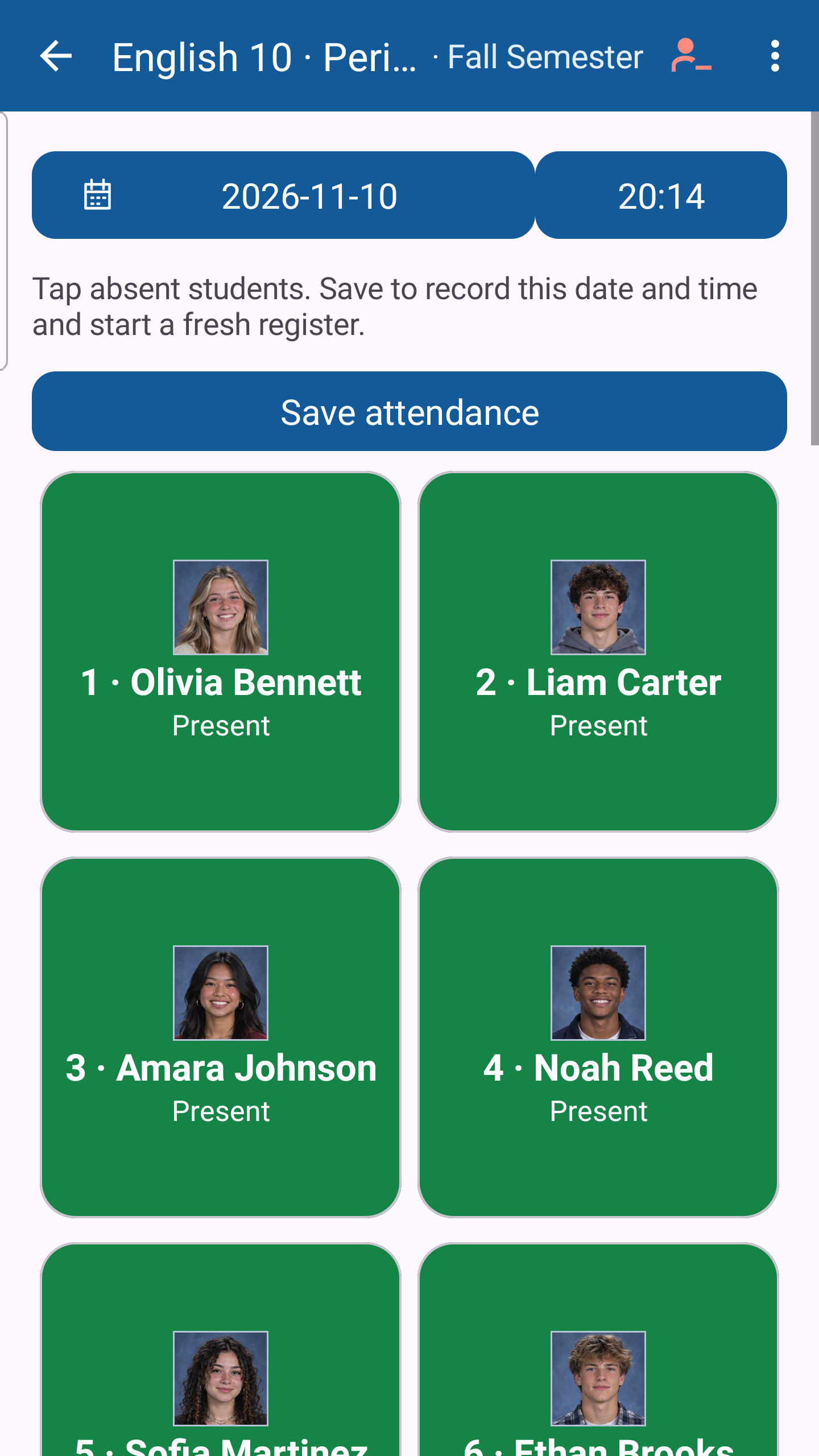
Before tapping student tiles, check the class and term displayed on the attendance page. Confirm that the date and time match the register you intend to create.
Use the starting point that saves taps
Students begin as present. Tap absent students to change their status. If most students are absent, the bulk present/absent control can give you a quicker starting point. Review the grid before saving.
Save a separate register for each occasion
Use the save icon beside the time to save a dated and timed attendance register. A fresh list is then available for the next register. This is useful when you teach the same group more than once in a day.
Give the time a session context
Configure attendance periods for the class so an exact recording time can be associated with the appropriate session. Check your session start and finish times rather than assuming every timetable uses the same duration.
Correct the record when needed
Use attendance history to review saved registers. A long press offers editing or removal of a register. Review corrections carefully, especially if optional attendance deductions are enabled.
Keep grading decisions explicit
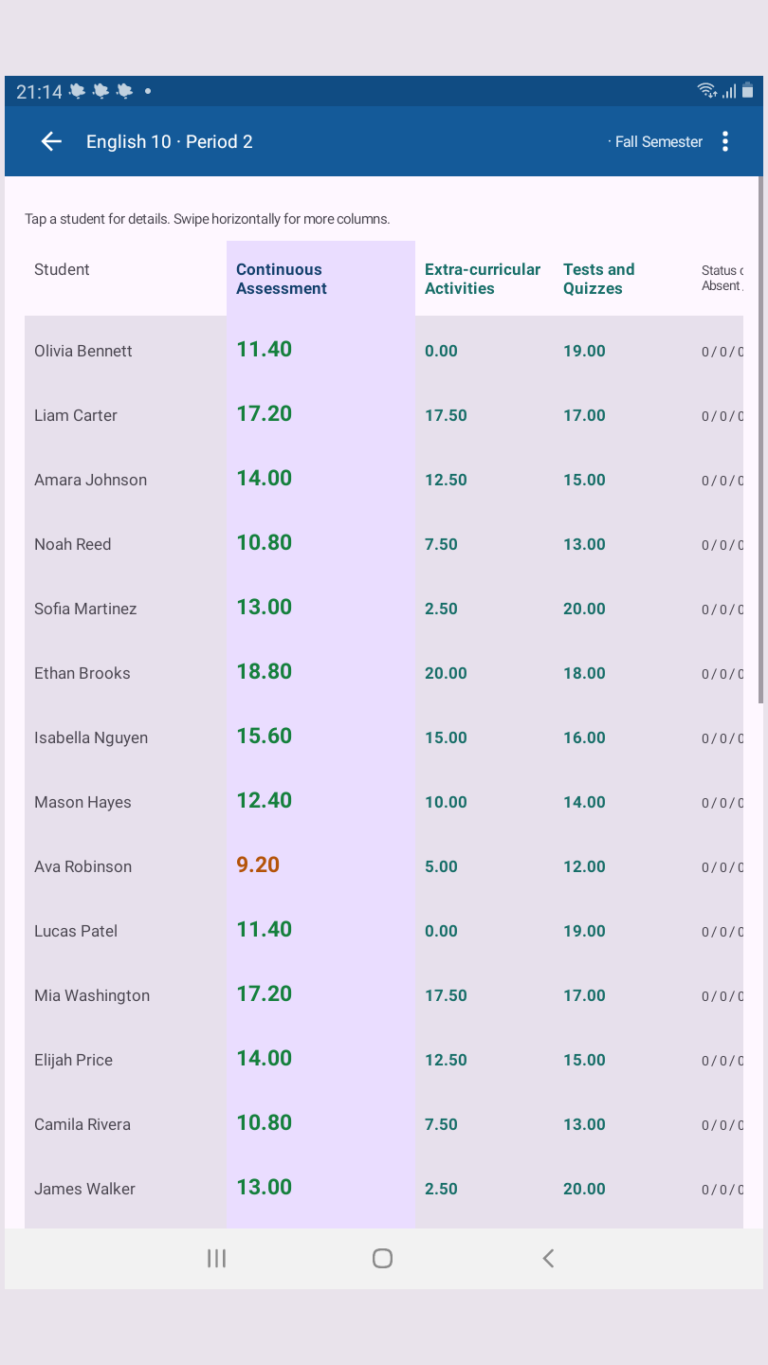
Attendance deductions are optional and configurable. Decide on the policy with your institution before using it, and check whether an absence is justified. The app helps record a decision; it does not replace your school’s policy.